I recently hooked up a Windows 7 box to my Dell ST2310 monitor and was surprised at just how horrid the fonts looked, especially since my MacBook Pro looks fantastic using both DVI and HDMI with the display. I even tried all the ClearType tweaks to no avail.
Then, it suddenly dawned on me - when I started viewing some iTunes videos - that the OS was not taking advantage of the available screen real estate (in full screen view mode).
I tried to go minimal with the Windows 7 install, as I find that too many utilities, tray icons and services still manage to clog up the works. To solve this problem, I had to grab the ATI CATALYST Control Center software to do more detailed tweaks.
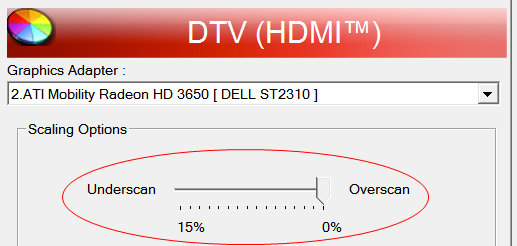
It turns out that the problem was with the overscan settings. The original, default setting by the built-in Windows 7 drivers had the slider right in the middle. I had to move it all the way to the right (full overscan) to both reclaim viewing space and font crispness.
Believe it or not, Engadget has a pretty good breakdown of the in’s-and-out’s of overscan if you’d like further reading. I blogged this mainly to help folks out who may be as frustrated as I was.
No comments yet.